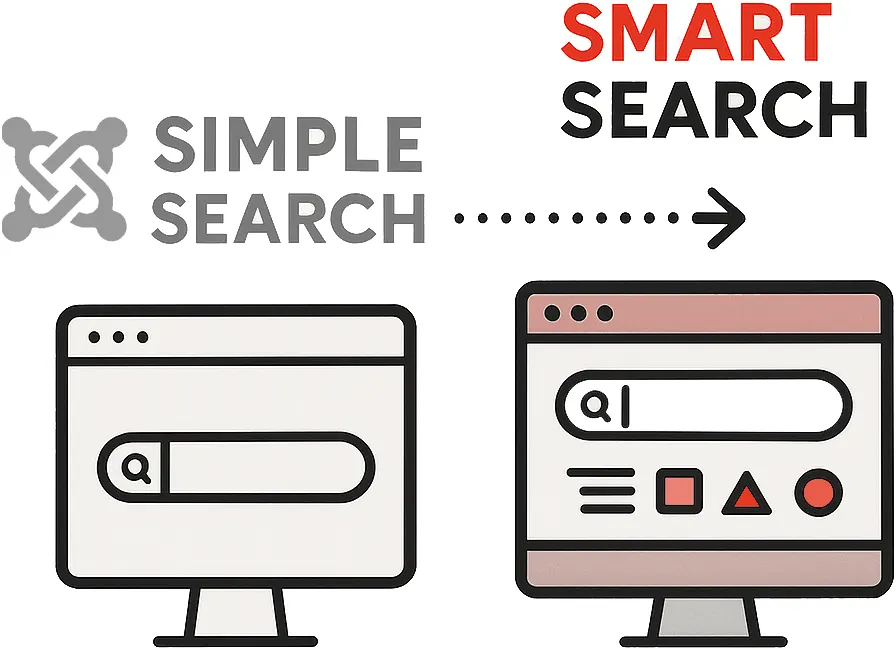
Smart Search has been around since Joomla 2.5, but it’s surprising how often we see it disabled or misused. Many site owners still run the old search or leave the new component poorly configured.
From simple search to smart search
The original Search component (`com_search`) relied on database queries like LIKE '%word%' and needed extra plugins to reach beyond core content. It could do the job on a small brochure site, but it struggled as soon as you had hundreds of articles, products or documentation pages. Smart Search (com_finder) was introduced to solve this. It builds an index of your content in the background, breaks text down into tokens and gives each token a weight. The result? Faster searches and results ranked by relevance. Better still, you get filters to narrow by date, type or category, and logical operators like and, or and not to refine queries.
Core features you shouldn’t ignore
Smart Search comes with a few moving parts. Understanding them makes the difference between a clunky search box and something closer to a mini‑Google.
Indexing – the heart of smart search
At the centre of Smart Search is the index. Joomla 4 and 5 will automatically index new articles, categories, tags and contacts as long as the relevant Content – Smart Search plugins are enabled. Older versions required a manual run every time content changed; now it happens in the background. The index page lets you force a reindex, publish or unpublish items, optimise the database tables or clear everything out and start again. Clearing the index is occasionally necessary but resets filters, so use it sparingly.
Content maps and filters – helping users drill down
Joomla 4/5 introduced content maps, which group meta‑information such as type, category, author or language into so‑called card groups. When your site is indexed, each item can belong to multiple maps, and those maps appear as dropdown filters on the search page. Think of them as faceted navigation: your visitors can pick “News” in the category map and “English” in the language map, without caring whether the underlying content is an article, a contact or a news feed item. On top of that, you can build your own filters – restricting searches to a specific author, date range or tag – and assign them to menu items or modules.
Search terms and analytics
The Search Terms page records what users have searched for. It’s switched off by default, so enable Gather Search Statistics in the component options if you want to capture this data. We recommend you do: it tells you which keywords matter to your audience and shows when visitors are trying to find something you haven’t created. Use it to refine your content strategy or adjust filters.
Indexing best practices
Because the index lives in your database, it grows as you add content. On a live site where new articles, products or contacts are added daily, make sure you reindex regularly. Joomla’s backend offers a button to run the indexer manually, but for anything beyond the smallest sites you’ll want to automate the process. Running php joomla.php finder:index from the cli folder on your server will refresh the index quickly. Set this up as a daily CRON job at a quiet time – say 2 am – so your visitors always see up‑to‑date results. And if you use custom fields, remember to mark them as searchable and, if appropriate, include them as taxonomy fields so they appear as filters.
Don’t forget to enable the correct Smart Search plugins for every content type you use. If you disable a plugin for contacts or tags, those items simply won’t appear in search results. Conversely, if you’re not using a feature such as contacts or news feeds, disable its plugin to keep your index lean.
Configuring your search page and module
Once indexing is sorted, you need to present search to your visitors. Create a menu item of type Smart Search to add a dedicated search page. The Details tab lets you pre‑define a query or attach one of your filters, while the Options and Advanced tabs control what data is shown in results – choose whether to display a snippet, the author, the publish date or the item’s image. For a site‑wide search box, publish the Smart Search module. You can enable auto‑suggest to show live suggestions as visitors type, decide whether a search button should appear and pick which menu item should handle the results.
Extending smart search with plugins
Out of the box, Joomla indexes articles, categories, tags, contacts and news feeds via its built‑in finder plugins. If you run a shopping cart like JoomShopping or build pages with a CCK such as SP Page Builder, you’ll need their respective finder plugins to make those items searchable. Install and enable the plugin, then check the index to ensure the content is picked up. Developers can also write custom finder plugins for bespoke components; the Joomla documentation has guidance on creating one.

Query syntax and user experience
Smart Search understands logical operators that help refine results: use and to require multiple terms, or to allow alternatives, and not to exclude a word. Wrapping a phrase in quotes searches for that exact phrase. For example, typing shop and "free shipping" will return items containing both “shop” and the exact phrase “free shipping”. Despite these capabilities, most visitors simply type a word or two and expect relevant results. That’s why auto‑suggest and clear filters are more important than teaching your users advanced syntax. Keep the search field visible on every page, add placeholder text that hints you can narrow down results and review the search term statistics to see what people are actually looking for.

Our agency’s view
On a lot of the sites we work on, it’s common to see the search functionality ill-configured, or even deactivated – simply because Smart Search was never properly configured.
Indexing your content, enabling the right plugins and setting up a reindex routine aren’t optional – they’re the basics. Once those are sorted, you can play with content maps and filters to make the results page feel effortless.
We’re not fans of cluttered search forms; give users a single box, offer relevant suggestions and let them drill down only if they need to. A well‑configured search builds trust: it signals that your site is organised and that you care about your visitors’ time.
Key takeaways
- Smart Search indexes your content and ranks results by relevance.
- Enable the right finder plugins and create filters to help visitors drill down by category, language or author.
- Regularly reindex your site via CLI and CRON to keep search results current.
- Use auto‑suggest and clear placeholder text to improve search experience.